 Online Tool Store
· 4 min read
How to Record a Voice Memo Online
Manesh Jayawardhana
CIO & Co-founder
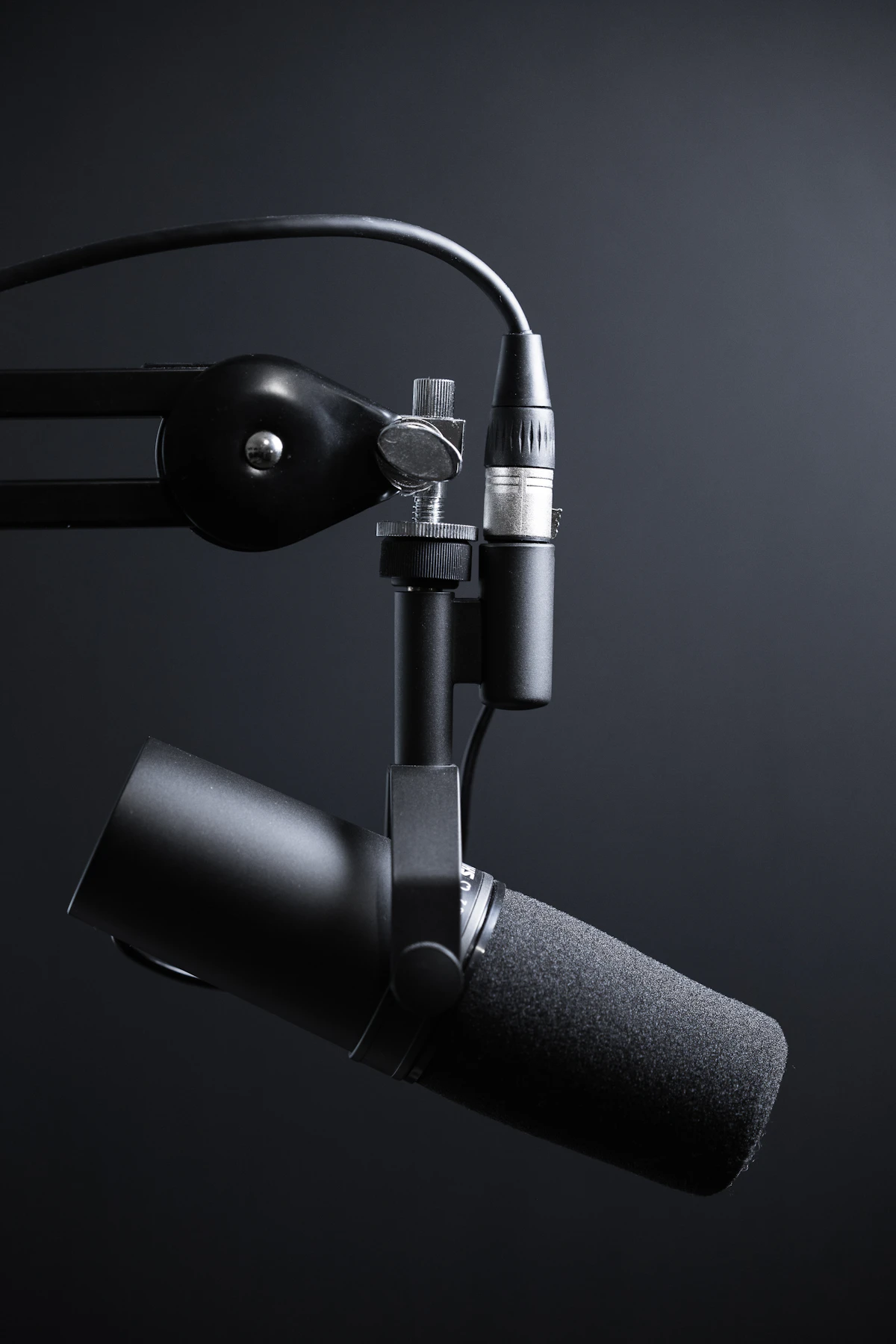
You need to capture a quick idea before it disappears: a voice note for a client, a pronunciation sample for a class, a rough podcast intro, or a reminder you want to send to yourself. Your phone can probably do it, but the file then has to move from phone to laptop, into a chat, or into a document. That tiny transfer step is often the annoying part.
An online voice recorder keeps the whole job in the browser. You allow microphone access, record the memo, pause if you need a second, play it back, and download the audio file from the same tab.
What recording in the browser involves
Browser recording uses your device microphone through a permission prompt. Once you approve it, the page can capture audio locally for that session. A useful recorder gives you simple controls: start, pause, resume, stop, preview, and download.
The point is not to replace a full audio workstation. It is to make a clean voice memo without installing a desktop app or sending audio through a complicated workflow.
Why people get stuck here
The most common friction is permissions. If the browser or operating system blocks microphone access, the recorder cannot hear anything. People also forget to check the selected microphone, which matters if a laptop has both a built-in mic and a headset connected.
The second issue is confidence. Nobody wants to send a recording only to discover it is silent, clipped, or full of room noise. A preview step matters because it catches those problems before the file leaves your machine.
| Check | Why It Matters | Quick Fix |
|---|---|---|
| Mic access | No permission means no audio | Allow microphone access |
| Input device | Wrong mic can sound distant | Select the headset or main mic |
| Room noise | Speech becomes harder to hear | Move closer and record again |
| Playback | Silent files are embarrassing | Preview before download |
What a good voice memo looks like
The speech is easy to understand
You do not need studio sound for a memo, but the words should be clear. Sit close enough to the microphone, avoid tapping the desk, and record a short test if the memo matters.
You can pause without losing the take
Pausing is useful when you need to check a note, wait for noise to pass, or gather your next sentence. A recorder that supports pause and resume saves you from stitching multiple clips together.
The file is ready to use
After recording, you should be able to play the memo back and download it. That is the whole workflow. If you have to create an account or export through several screens, the tool is too heavy for a voice note.
Common mistakes to avoid
- Recording before the browser microphone permission is granted.
- Using the laptop mic while a better headset mic is connected.
- Skipping playback and sending a silent or distorted file.
- Recording too far from the microphone in a noisy room.
- Closing the tab before downloading the finished audio.
How to do it with Voice Recorder
Online Tool Store’s Voice Recorder records through your microphone, lets you pause and resume, plays the memo back, and downloads the audio file from the browser.
- Open the Voice Recorder tool.
- Allow microphone access when your browser asks.
- Start recording and speak at a steady distance from the mic.
- Pause and resume if you need to collect your thoughts.
- Stop the recording and play it back.
- Download the audio file once you are happy with it.
Because the tool runs in your browser, it is a good fit for quick notes, spoken drafts, feedback clips, and simple audio handoffs.
Frequently asked questions
Why is my recording silent?
Check whether microphone permission was blocked and whether the correct input device is selected in your browser or system settings. A disconnected headset or muted microphone can also produce a silent file.
Can I pause a recording?
Yes. The Voice Recorder supports pausing and resuming, which is useful for longer memos or moments when background noise interrupts you.
Do I need to install anything?
No. The tool runs in the browser, so you can record, preview, and download without installing a separate sound recorder.
Final thought
An online voice recorder is best for fast, practical audio: say the thing, preview it, and download the file. Do one short test first when clarity matters, and the rest is wonderfully boring.